ArrowXL Linnworks Shipping Integration
A Linnworks App used to generate ArrowXL shipping labels To install the app, navigate to the Linnworks Application Store and search for "ArrowXL". This will allow you to install or manage the...
ArrowXL Linnworks Shipping Integration
A Linnworks App used to generate ArrowXL shipping labels
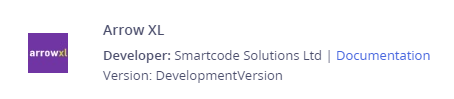
To install the app, navigate to the Linnworks Application Store and search for "ArrowXL". This will allow you to install or manage the application.
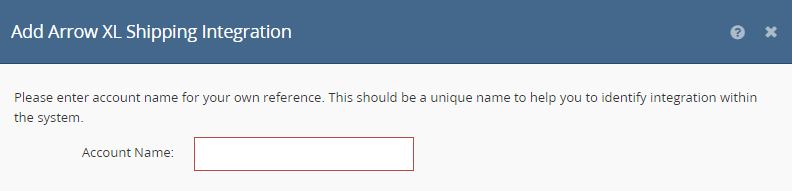
You will then be asked to give the integration an internal Account Name:
As part of the configuration you will also need to enter your API credentials which are available from your ArrowXL account manager. You will require;
- API Username
- API Password
- Client Account Number
- Client Code
- Product Key
- Trading Name (this name will appear on your shipping labels)
- Tracking Client Code (TAC)
- Supplier Identifier (2 character value to use as part of barcode generation)
- TAC Sequence Number (defaults to 000000)
Once complete you can not configure the required services. To add specific services to Linnworks, select the "Services" button.
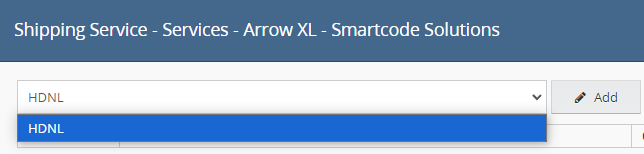
Here you can add any required services to the system:
Once added, you can name the service using the "Linnworks Service" text box.

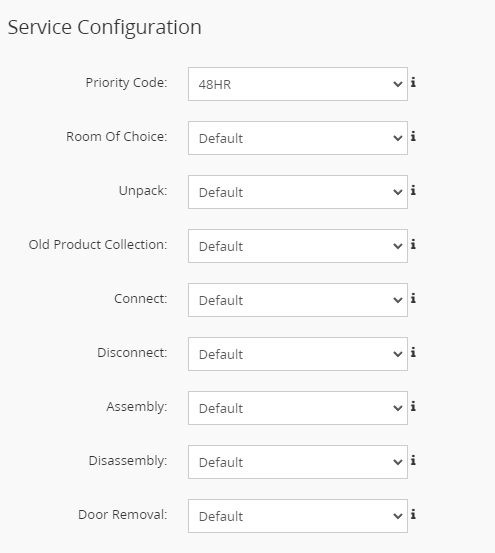
Once the service is added, you can then further configure the service using the "Edit" button. This will allow you to specify the ArrowXL Shipping Service.
Once all required services have been added, they will become available to use with Linnworks.