Setting Up a View in Linnworks Open Orders New
With the new beta release of open orders in Linnworks you can create a view that determines which orders are sent to your Smartcode devices. To get started log into Linnworks and open the 'Open...
Setting Up a View in Linnworks Open Orders New
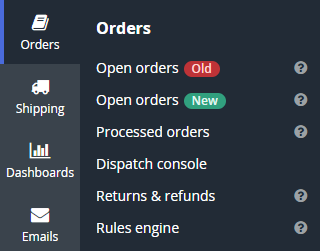
With the new beta release of open orders in Linnworks you can create a view that determines which orders are sent to your Smartcode devices. To get started log into Linnworks and open the 'Open Orders New' screen
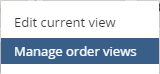
Next, select the settings icon on the top right of the screen and select 'Manage order views'

You'll now be on the Order View Manager screen, tap the 'Create New View' button

Name your view 'Smartcode' and tap 'Create View'

Now the view has been created we can edit the filters for that view, tap the 'Edit View' button.
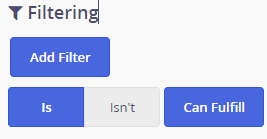
You can now enable the filters you require, for example if you wish to enable the 'Can Fulfil' filter you can set it to 'true'.
In order to ensure the barcode data filters through to your Smartcode devices you'll also need enable all the fields under the 'Items' dropdown, in addition to the ones shown below.
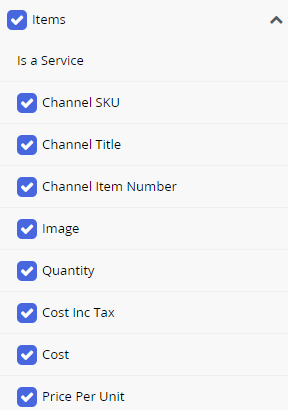
Of particular importance are the 'Barcode Number' and 'Bin Rack' fields
Once you have set your filters be sure to tap 'Save'.
You'll now need to ensure that the view is visible to the Smartcode application, to authorise this tap the 'Add User or Group' button

Then select 'Smartcode'

Then 'Save'
Thats your Smartcode open order view now all setup. You can edit the view at any time in Linnworks.net if you need to tweak the settings.