How to change the Smartcode scan type
Changing the scan method on your scanning device The Smartcode app supports a number of different scan types including 1D Laser 2D Laser Keyboard wedge RFID UHF If you need to change your scan type...
How to change the Smartcode scan type
Changing the scan method on your scanning device
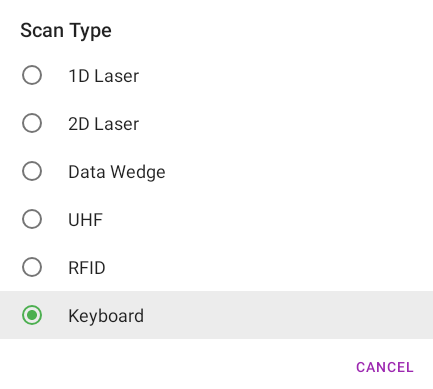
The Smartcode app supports a number of different scan types including
- 1D Laser
- 2D Laser
- Keyboard wedge
- RFID
- UHF
If you need to change your scan type you will first need to find your device id, which you can find on the bottom of Scan home. We have a guide here
Once you have your device code, you'll need to enter settings within the App by tapping on the icon in the top left

Scroll down and tap Administrator Settings
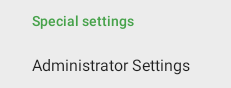
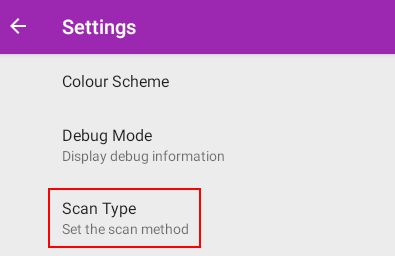
Enter your device code and you will see the device administrator settings. Tap Scan Type
You'll then be able to choose from a list of supported types