How to Scan an Order
Scanning and verifying order contents with the Smartcode app Checking an order with Smartcode begins by typing or scanning the order number. Scanning If you have a barcode on your pick notes you can...
How to Scan an Order
Scanning and verifying order contents with the Smartcode app
Checking an order with Smartcode begins by typing or scanning the order number.
Scanning
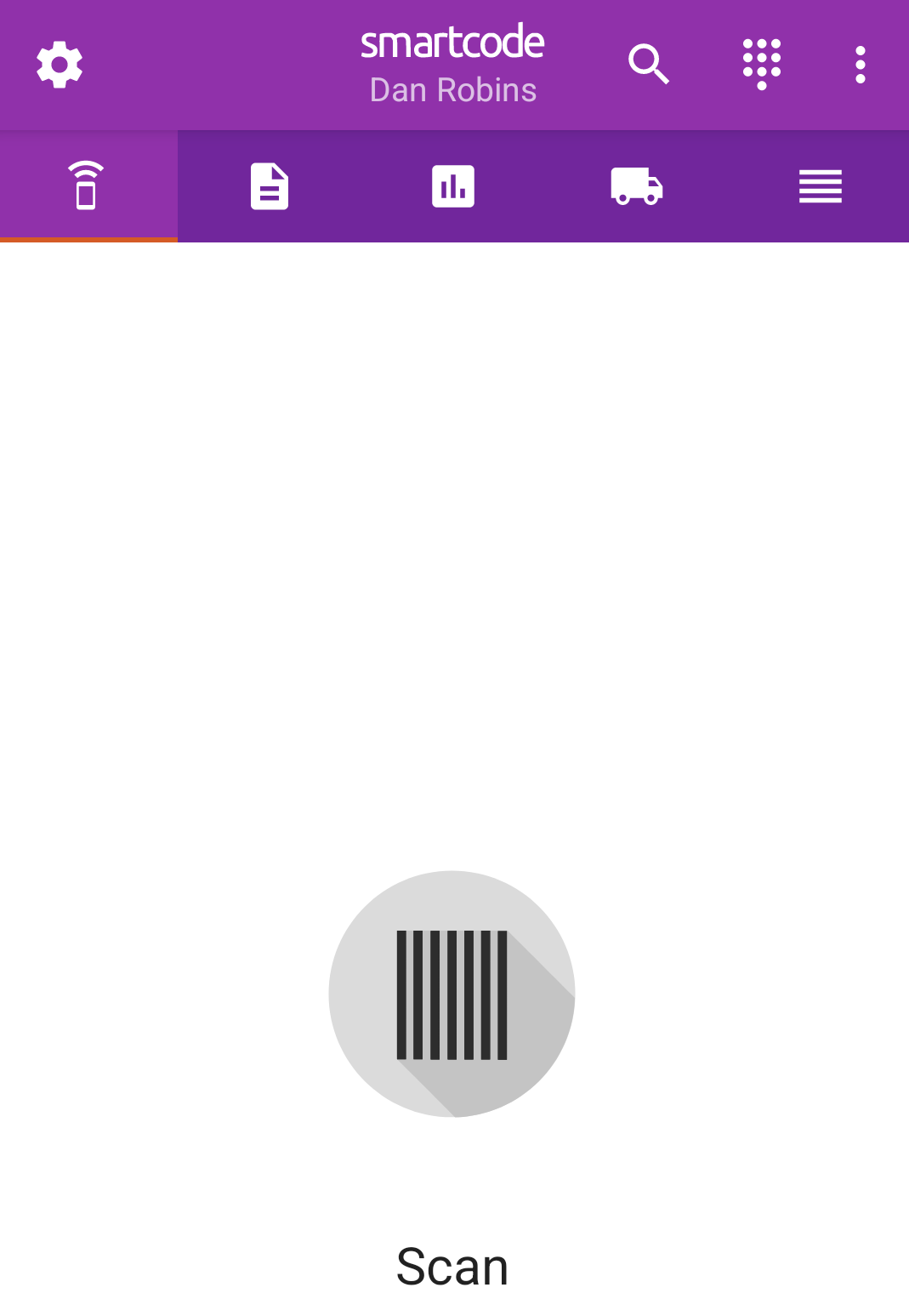
If you have a barcode on your pick notes you can scan it to begin the order checking process
Typing
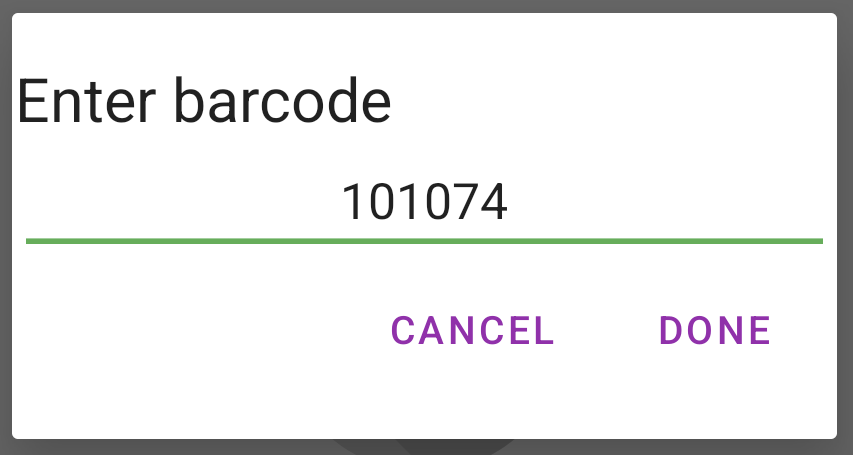
Alternatively you can enter the order number manually in the Smartcode application by tapping the manual entry icon on the home screen

You can then enter the order number
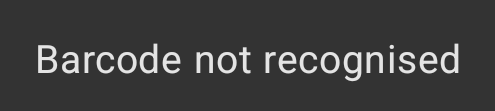
If you order number is not valid (i.e. it does not exist on your system) you will hear a 'bad beep' and a error message will be displayed.
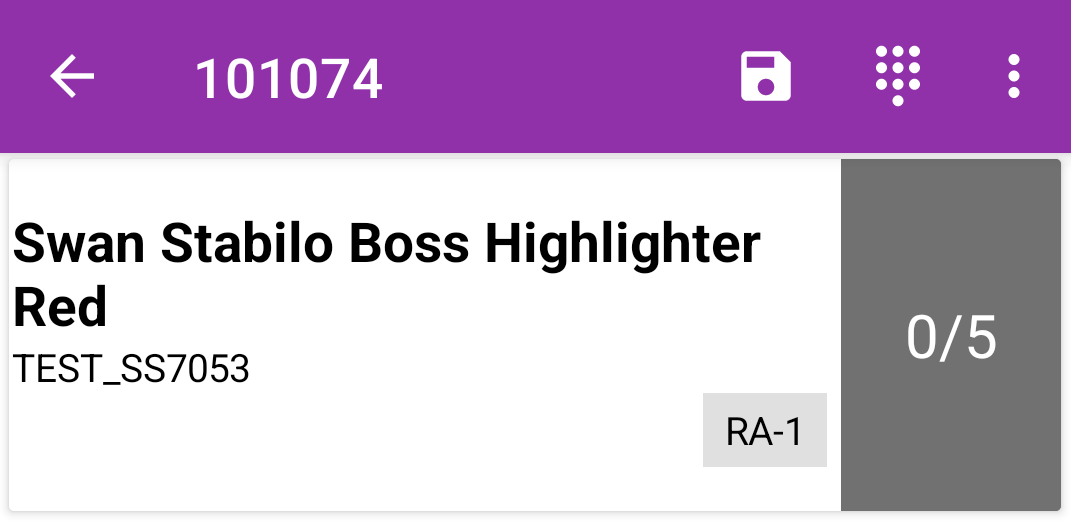
If the order number is valid the contents of the order will be displayed
Scanning Items
You can now scan the items that belong in the order to verify they are correct. Items can be scanned in any order if an item scans correct you will hear a 'good beep' and its order line will be incremented.
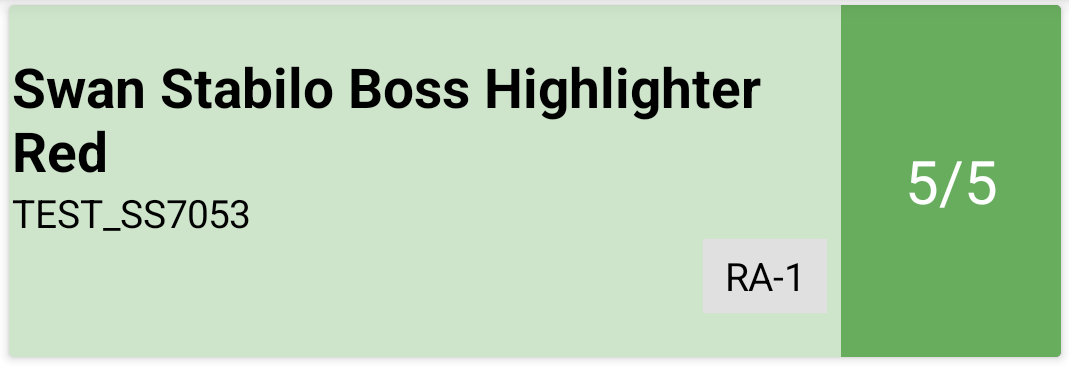
A green line means the order line is complete
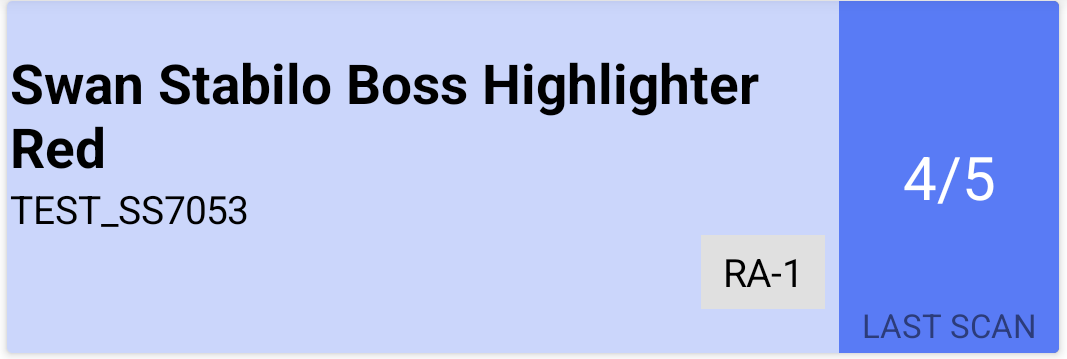
If the item is part of a multi item line, it will turn blue until the line is complete
If you over scan an item, i.e. scan more that belong in the order the line will turn red
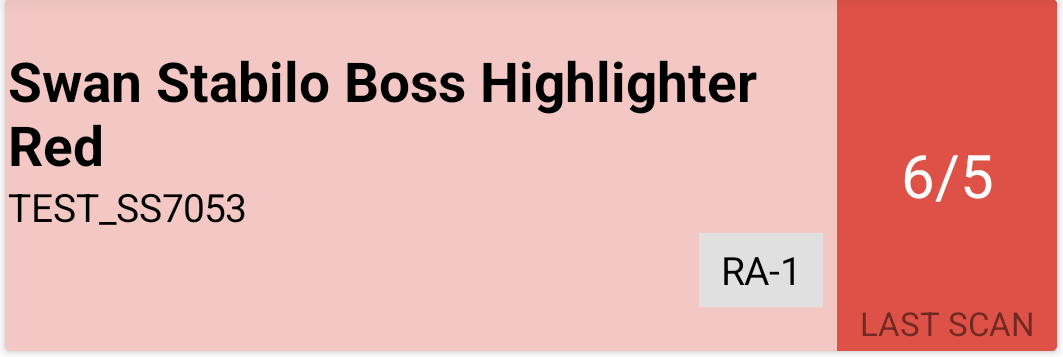
An error message will also be displayed

To correct an overscan see How to correct an Over Scanned Item
Manually Entering Item Quantities
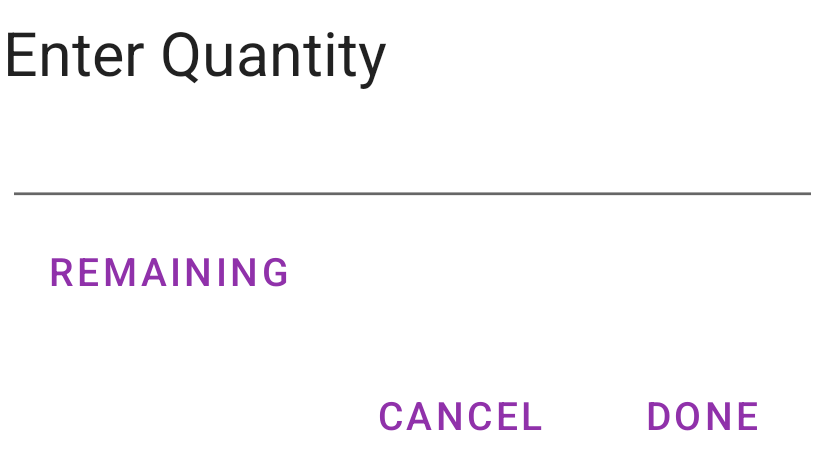
If you have a large number of items on an order line you may wish to enter the quantity manually rather than scanning each individual item. You can do this by long pressing on the order line to view the 'Enter Quantity' box.
Order Correct
When all line have been scanned correct the 'order correct' beep will be emitted and an order correct notification displayed
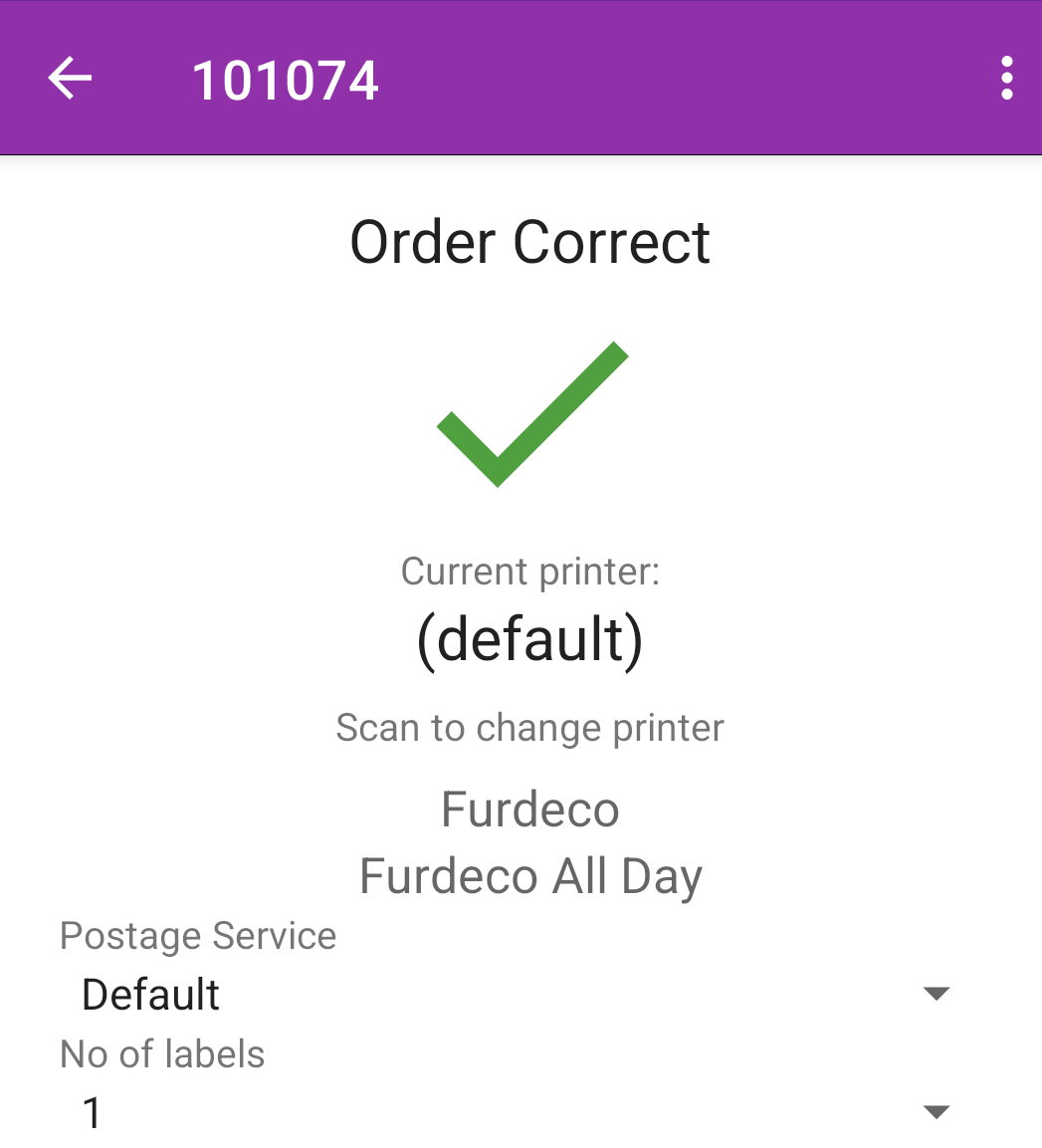
It is common practice to associate a change of order status in your ecommerce system once the order scans correct (e.g. Picked, Processed, Dispatched etc). This status is dependant on which integration you are using and the configuration settings on your account. If you wish to alter your settings please raise a Smartcode support ticket.