Resetting your Android Scanning Device
How to reset the the Android operating system to a clean install If you intend to reset the device and reinstall the Smartcode app, you will need to reset your device code in the Smartcode Console...
Resetting your Android Scanning Device
How to reset the the Android operating system to a clean install
If you intend to reset the device and reinstall the Smartcode app, you will need to reset your device code in the Smartcode Console first.
Please see this guide for obtaining your device code. Then, on this page click the reset button for that device code. Once you reinstall the smartcode app you will be able to re-use the code.
If you need to reset the Android software on your device you'll need to enter settings.
Be aware this will wipe all data and files from the device, as if it had just come out of the factory. You will need to log in to your Google account and download apps again.
You may be able to swipe up on the home screen to show the app drawer.
If this does not work tap the app drawer button:

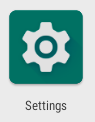
Then navigate to Settings
Depending on your version of Android you will either need to tap:
- Factory Data Reset, or
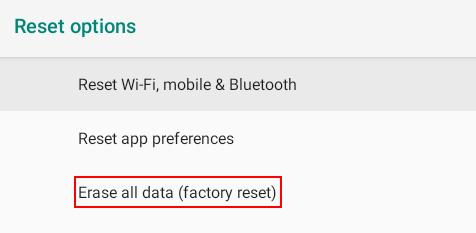
- Reset options, or
- System and then Reset options
Then Erase all data (factory reset)
Your device will then restart with a clean install of the Android operating system. The first reboot may take a few minutes.