How to clear the Smartcode apps data
Clearing the app so it can be reinitialised Before starting you will need to reset your device code in the Smartcode Console. Please see this guide for obtaining your device code. Then, on this page...
How to clear the Smartcode apps data
Clearing the app so it can be reinitialised
Before starting you will need to reset your device code in the Smartcode Console.
Please see this guide for obtaining your device code. Then, on this page click the reset button for that device code. This will allow you to re-initialise the device after clearing the data.
To clear the Smartcode application's data you'll need to enter settings.
You may be able to swipe up on the home screen to show the app drawer.
If this does not work tap the app drawer button:

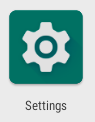
Then tap settings
App & Notifications (on some versions of Android it's called "Apps")

Then locate the Smartcode app and tap on it (on some versions of Android you will need to tap "See all apps" first)

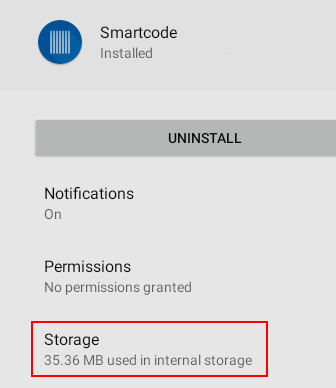
Then tap 'Storage' (on some versions of Android it's called "Storage and cache")
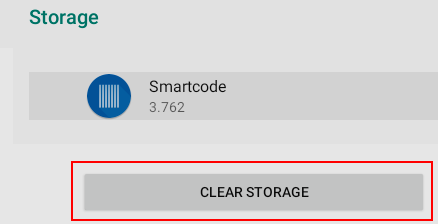
Then tap 'Clear Storage'
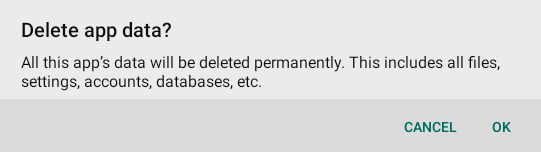
Tap OK to confirm
Your apps data will now be cleared, if you return to the Smartcode app you will see this screen. Your device is now ready to be reinitialised
